
Xender on PC
Is it possible to use the Xender app on a Windows PC? The short answer is yes. However, Xender cannot be used directly on a desktop computer. To use Xender on PC, you need an Android emulator. Several emulators are available online, but BlueStacks is the most recommended option because it is free, reliable, and easy to use. Using an emulator allows you to run the Xender mobile app on a PC or laptop. There are three simple steps to install Xender Android app on Windows using BlueStacks.
Step 1: Download & Install an Android Emulator
- First of all, install a trustworthy Android emulator.
- Here we will use the BlueStacks emulator.
- Go to Google and search for the BlueStacks official emulator and download it.
- You can also directly download it from “https://www.bluestacks.com.”
- After downloading, click install and wait until the installation is complete.

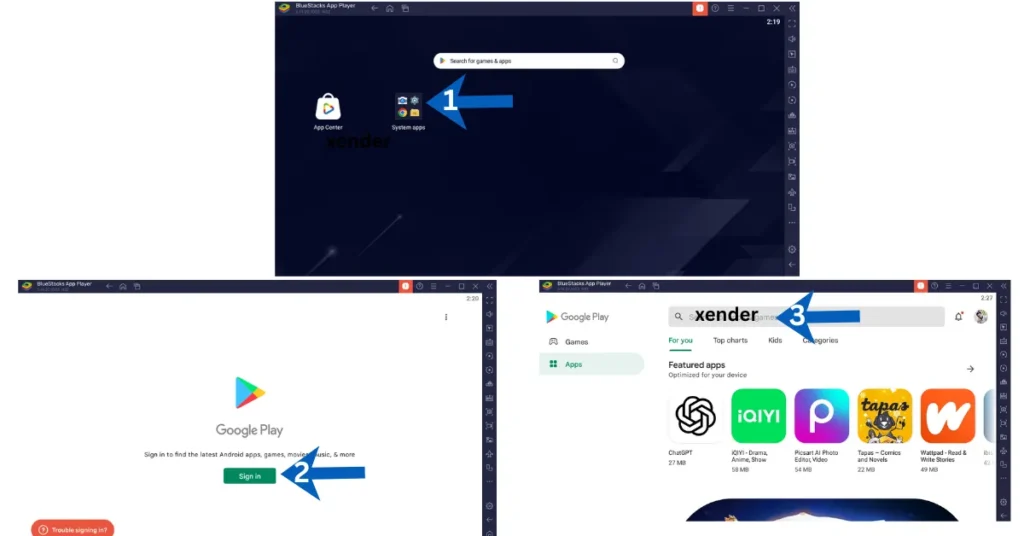
Step 2: Open the Google Play Store on BlueStacks.
- Now, click on the settings icon on the screen
- Sign in to the Google Play Store with your Gmail account.
- If you are already signed in, then ignore the above step.
- In the search bar, type Xender and press Enter on the keyboard to search for the app.
Step 3: Install and use the Xender app on a Desktop PC
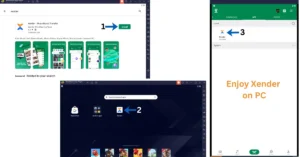
- Click on the install button. It will be installed on BlueStacks.
- Once installation is complete. Click on the Xender icon.
- Xender will be opened on your laptop PC.
- Now enjoy the Xender app on your desktop with a bigger screen.
Core articles: Xender APK 2026 guide and Xender web alternative direct mode