
Xender File Transfer: All-in-One Solution Across Various Platforms
Xender is a fast, secure, reliable, and easy-to-use app. It is used for flash file transfer and sharing worldwide, especially in India. Xender file transfer app allows users to send or receive data instantly between devices, like Android, iOS,KaiOS, and desktop PCs (Windows or macOS). During data transfer or backup, no internet connection, mobile data, or USB cable is required. Only Wi-Fi or a personal hotspot is needed. Xender file transfer apps support the following ways to share files quickly and securely.
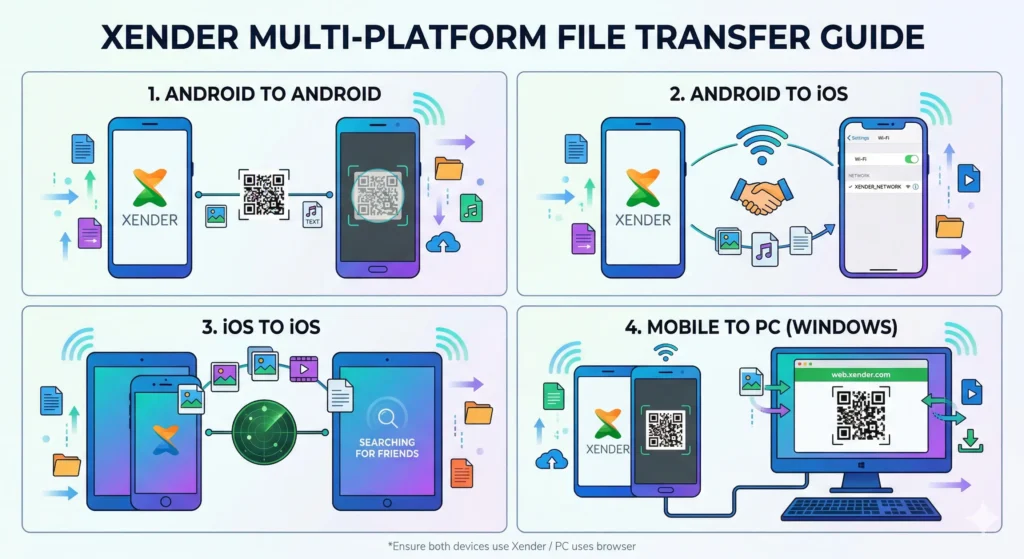
Xender File Transfer Between Different Devices
Xender is the most reliable and fastest file sharing software. It is known as a smart file transfer app around the world. I have shared below my experience using it on different operating systems.
1- Android to Android
Can we transfer data from Android to Android? Yes, we can. How? Follow the steps below:
Step 1
- Open the Xender app on your Android device and tap send.
- Allow all necessary permissions.
- A QR code will be generated, with the text “Waiting for receiver.
Step 2
- Open Xender on the other device and click receive.
- Allow all necessary permissions.
- A QR code scanner will appear with the message “Scan QR code to connect.”
Step 3
- Scan the QR code and find your target device, and click on it.
- Both Android mobiles will be connected automatically.
Step 4
- Now you can share files like videos, music, images, apps, APKs, PDFs, etc. between both Android devices.
2- Android to iOS
Can we transfer data from Android to iOS? Yes, we can. How can we? Follow the steps below:
Step 1
- Open the Xender app on your Android device and click send.
- Allow all necessary permissions.
- A QR code will be generated, with the text “Waiting for receiver.
Step 2
- Open Xender on the iOS device and tap Receive.
- Allow all necessary permissions.
- Click Connect to Android. A QR code scanner will appear on the screen.
Step 3
- Scan the QR code on the Android device.
- Both devices will be connected automatically.
Step 4
- Now you can transfer files such as videos, audio, photos, apps, APKs, and other documents between Android and iOS.
3- iOS to iOS
Can we share files between iOS devices? Yes, we can easily share. What is the process? Follow the steps given below:
Step 1
- Open the Xender app on your iOS device and tap send.
- You will be navigated to a new page to search for nearby iOS devices.
Step 2
- Open Xender on the 2nd iOS device and tap Receive.
- You will be redirected to a new page to search for nearby iOS devices.
Step 3
- Select your target device and click on its icon.
- Both iOS devices will be connected automatically.
- Only one person needs to click the icon.
Step 4
- Now you can send and receive files seamlessly between iOS devices. You can transfer a full photo album, a large video or audio bundle, full PDF books, or other types of data quickly and securely.
4- Mobile to Windows/Mac
Can we transfer files from an Android or iOS mobile to a PC or laptop?
Yes. You can easily and quickly transfer files from Android or iOS devices to Windows or Mac computers.
We have covered the complete step-by-step process with screenshots on our page “XenderWeb Alternative—Direct Mode.” Visit the page and learn how to connect your Android phone, iPhone, iPad, or iPod to a desktop Windows PC or Mac laptop.
FAQs
Learn how to use Xender’s advanced features, “social media and AI.”