
Xender Web: Alternative > Direct Mode
If you are searching for Xender Web or visiting web.xender.com to connect to Xender but not finding a solution, don’t worry—we’re here to help. The official Xender website, “https://web.xender.com/”, has been closed, and Xender now uses a direct hotspot or Wi-Fi connection mode or a local IP address in your browser.
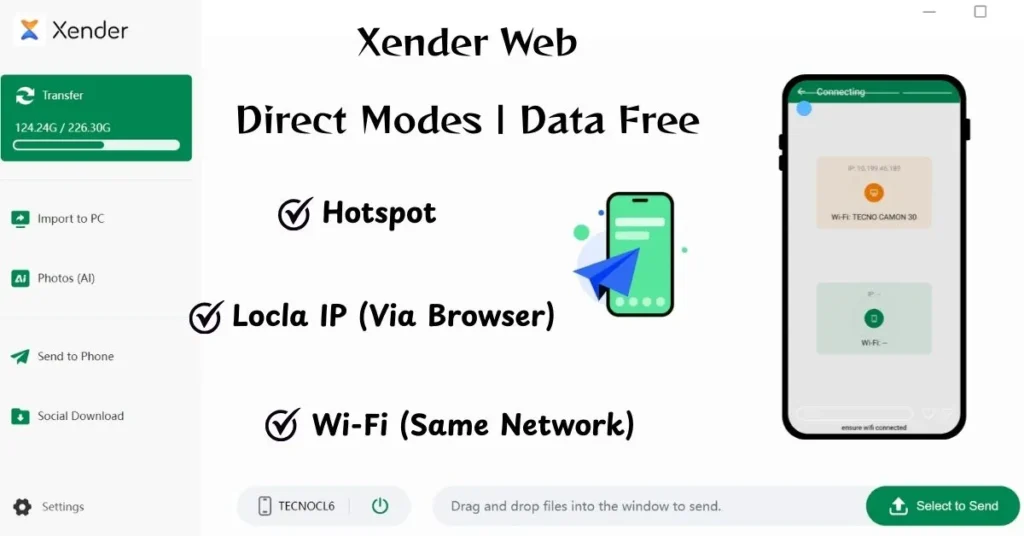
In this guide, we will explain how to use Xender web on your computer screen. We have divided it into two methods. Each method is explained with step-by-step instructions and screenshots for your easy understanding.
Xender Web: Wi-Fi or Hotspot Direct Mode
Method 1: Using Local IP in the Browser
Step 1:
- Open Xender app on your Android mobile.
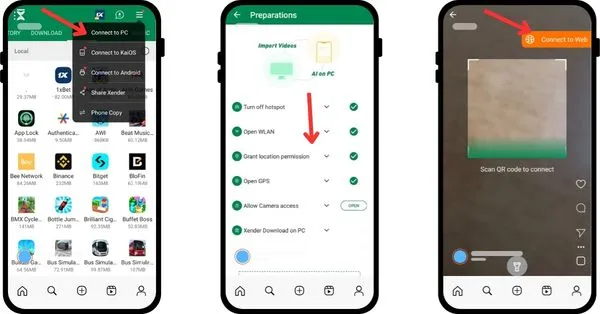
- At the top, right-click on 3 lines and then on “Connect to PC“
- Allow all required permissions and click Next at the bottom.
- You will have two options here: a QR code scanner and a web connection option.
- Click on “connect to web.”
Step 2:
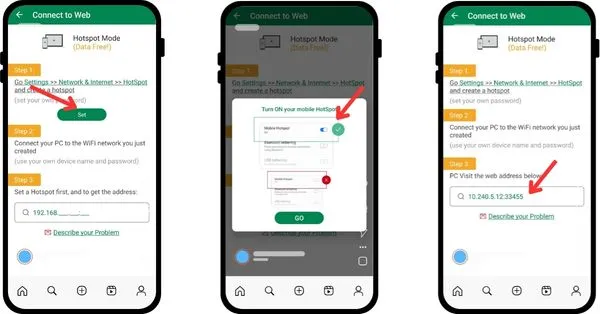
- Click “set,” connect your hotspot/Wi-Fi, then click “go.”
- If you are already connected, the above step will be bypassed.
- A local IP address will be created, like 192.168.43.1 or 192.168.x.x:33455, Copy it and paste it on your laptop/PC browser.
Step 3:
- When you enter the IP address in your desktop browser and hit enter, a pop-up on your mobile will appear asking for permission.
- Click on “accept.”
- Then a pop-up window will appear on your computer screen.
- Click “confirm.”
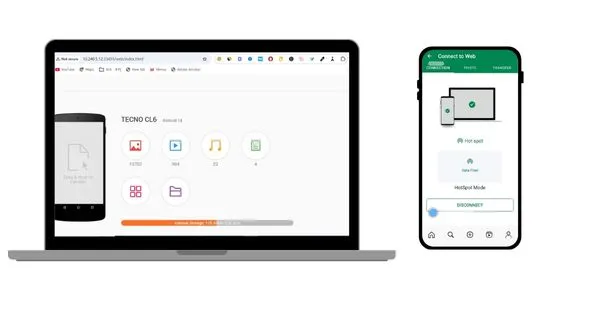
- You are now connected to Web Xender for PC, which lets you use the Web Xender app directly in your browser without any Web Xender APK download required.
Step 4:
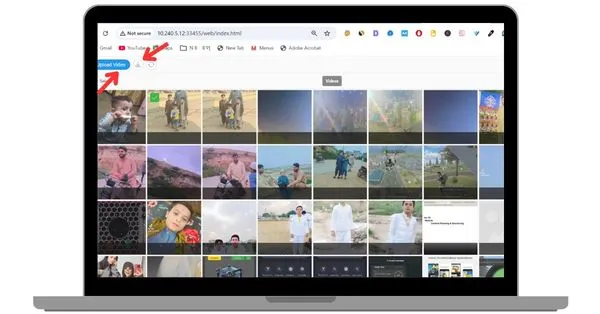
- Now you can use Xender on a big screen with all the same options available on an Android cell phone.
- Easily upload files to your mobile or download files to your PC, including images, videos, documents, and even social media content, with just one click.
- Simply select a file and click Download to save it on your system.
- Click Upload and choose the data you want to transfer to your mobile device.
Method 2: Connect through QR Scanning Code

Step 1:
- Open the Xender app on your mobile.
- Click on the three lines at the top of the Xender app, and from the drop-down list, click on “connect to PC.”
- Allow all necessary permissions and click next.
- A QR code scanner will appear.
- To scan the QR code and connect to the PC, you will need an APK file to download and install on your system.
Step 2:
- Click here to download .apk file.
- Once installed and downloaded, simply click and open it on your system.
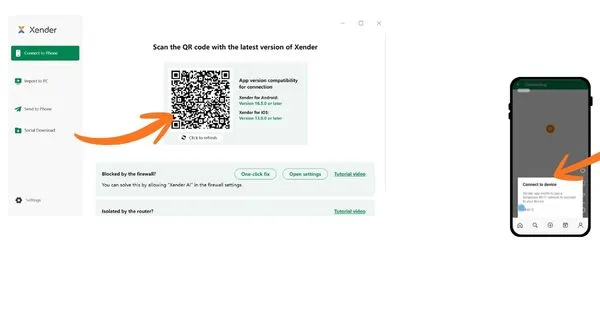
- Now click on “Connect to Phone.”
- A QR scan barcode, “scan the QR code with the latest version of Xender,” will appear on your Xender PC screen.
- Scan it with your mobile and click on “connect” on your phone.
Step 3:
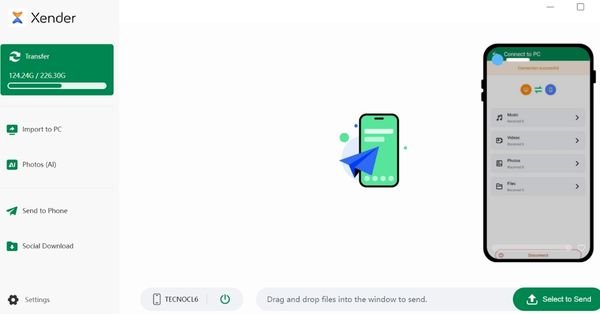
- Now you are connected with Xender Web on PC.
- Use it as a web sender and share your important files between mobile and PC.
- You can access:
- Images
- Videos, music
- Documents/files
- Apps / APK files
Step 4:
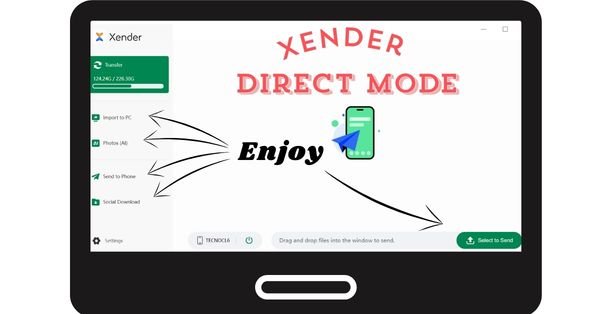
- There are five options to use on a wider screen.
- Import to PC
- Photos (AI)
- Send to Phone
- Social Download
- Select to send
Enjoy this amazing app, with its unique features.
You may also like: Xender APK 2026