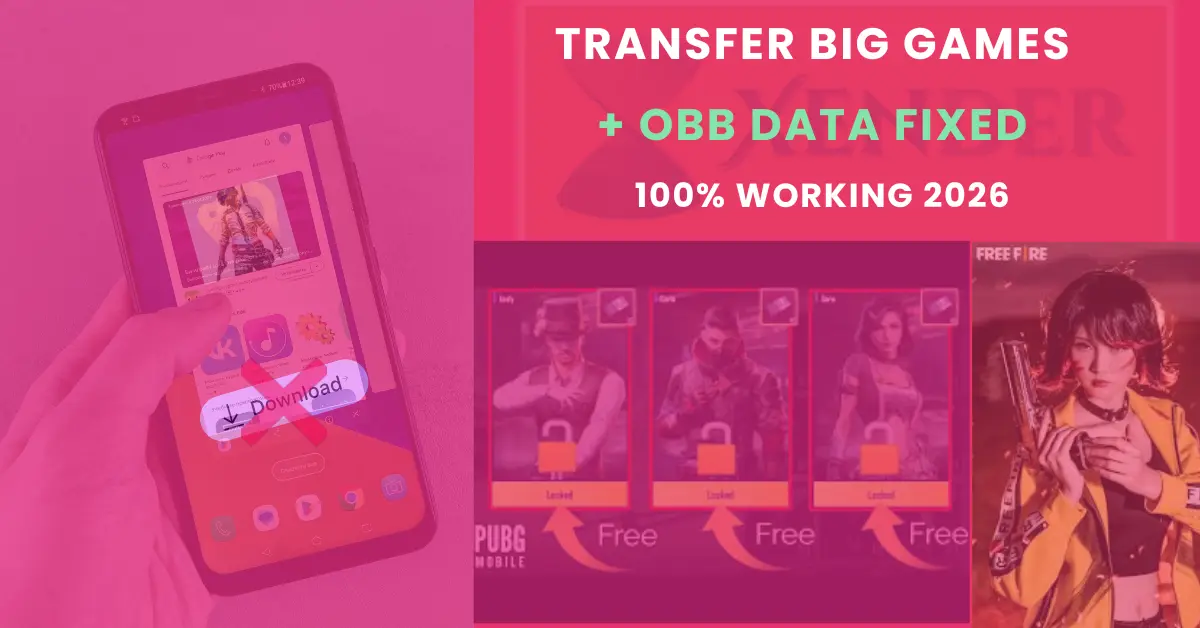
Transfer Large Games with OBB via Xender 2026 (PUBG, Free Fire, Roblox)
Have you ever tried to share a high-end game like PUBG Mobile, Free Fire, Roblox, Genshin Impact, or other large games via Xender? And it refuses to open or install on your friend’s phone? You see the icon and install the APK, but then a black screen appears that says, “Download failed because you may not have purchased this app.”
I’ve personally faced this issue. It’s a common frustration in the gaming community. The reason is simple: modern Android games are split into two parts: the APK (the engine) and the OBB (the fuel/graphics). It is like, If you only send the engine, the car won’t start.
In this updated 2026 guide, I will show you the exact “Folder-Path Method” to move 100% of the game data using Xender. No internet, no cables, just pure speed.
What is an OBB File and Why Do You Need It?
Before we jump into the steps, let’s understand the science behind the OBB files. OBB (Opaque Binary Blob) files contain the heavy graphics, maps, and sound files of your game. Since Google Play has a 100MB limit on APKs, developers put the remaining data (for example, 2GB) in OBB files.
If you don’t move the OBB folder along with the APK, the game will try to connect to the internet to download it, which defeats the whole purpose of using Xender!
The Pre-Transfer Checklist
To ensure the transfer doesn’t fail at 99%, make sure:
- Storage Space: The receiving phone must have at least twice the game’s size available (e.g., 4GB for a 2GB game).
- Xender Version: Both phones should be on the latest 2026 version for faster transfer stability.
- Battery: Ensure both devices are above 20%. Large transfers may drain the battery quickly.
The Step-by-Step “Pro-Gamer” Transfer Method
Step A: Sending the APK (The Easy Part)
- Open Xender on both phones.
- On the Sender’s phone, go to the App tab.
- Select the game icon (e.g., Free Fire) and hit Send.
- Once received, the other person should install the APK, but DO NOT OPEN IT YET.
Step B: Locating the OBB Folder (The Critical Part)
This is where most people fail. You need to find the data folder manually.
- In Xender, tap the File icon at the top.
- Navigate to Internal Storage > Android > obb.
- Look for the folder named after the game (e.g., com.dts.freefirethe or com.tencent.ig).
- Long-press the entire folder and hit Send.
Step C: Placing the Folder Correctly
Once the receiver gets the folder, Xender usually puts it in the Xender/other folder. It won’t work there. Then
- Open the File Manager on the receiving phone.
- Go to Xender> Other and Cut/Move that game folder.
- Paste it into Internal Storage > Android > OBB.
- Now it will work perfectly. Install and enjoy your favourite game.
Troubleshooting Common Errors
| Error | Fix |
| “Xender File Too Large” | Ensure the phone is formatted to FAT32 or exFAT; check storage space. |
| “OBB Folder is Empty” | You must play the game for at least 30 seconds on the sender’s phone first. |
| “Connection Interrupted” | Turn off “Auto-Switch to Mobile Data” in your Android Wi-Fi settings. |
Why Xender Beats Other Apps for Gamers
In my tests against SHAREit and Google Nearby Share, Xender won because
- No Compression: It doesn’t “zip” the files, so there is zero chance of data corruption.
- Batch Sending: You can select the APK and the folder and send them in one go.
- Clean UI: No mid-transfer ads that crash the connection.
Final Verdict
Sharing large games is not hard any more. Use Xender and follow the OBB Path Method above; you can send your loved one’s game and save GBs of data and get your squad ready for a match in minutes.
👉 If you are facing issues using the Xender app, check our complete guide on how to fix Xender connection failed errors.