How to Connect Xender from Android to a KaiOS Phone for Free File Sharing
Do you have a KaiOS phone, like a JioPhone or Nokia phone, and want to connect it with another phone (Android)? Don’t worry. Many people find it confusing and cannot find the right solution online. But now, you are in the right place.
On this page, we will show you simple and easy steps to connect Xender from Android to KaiOS phone. We have also added screenshots to make the process easier to understand and follow.
Connect Xender from Android to KaiOS: Step-by-Step Guide
Step 1: Initialise the Connection on Android
First of all
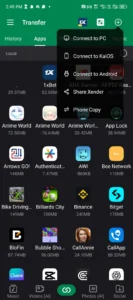
Open Xender: Launch the app on your Android phone.
Tap the “+” Icon: Look at the top right corner of your main screen and tap the “+” button.
Select KaiOS: From the drop-down menu that pops up, tap on Connect to KaiOS.
Step 2: Create the Hotspot Network
Now, your Android phone is going to create its own private, local mini-Wi-Fi network specifically for your KaiOS phone to join.
Tap the big green CREATE HOTSPOT button at the bottom of the screen.
Step 3: Grant Permissions
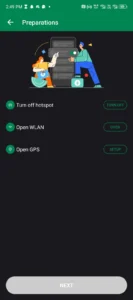
Before the phones can talk to each other, Android needs to make sure its wireless tools are ready. Xender will show you a “Preparations” screen to guide you.
Turn Off Hotspot: If your phone’s personal hotspot is currently active, tap TURN OFF.
Open WLAN (Wi-Fi): Tap OPEN to ensure your Wi-Fi is turned on.
Open GPS (Location): Tap SETUP to turn on your location services (Android requires this to scan for local devices securely).
Move Forward: Once all these items have green checkmarks, the grey button at the bottom will turn green. Tap NEXT.
Step 4: Connect Your KaiOS Phone to the Android Wi-Fi
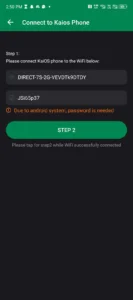
Your Android phone will now display a screen containing the specific network name and password it just generated.
Pick up your KaiOS phone and open its Wi-Fi settings.
Look for the network name shown on your Android screen (e.g., DIRECT-7S-2G-VEVDTk9DTDY).
Select it and type in the exact password provided on your Android screen (e.g., JSi65p37).
Once your KaiOS phone says “Connected” to that Wi-Fi network, return to your Android phone and tap the green STEP 2 button.
Step 5: Scan and Link!
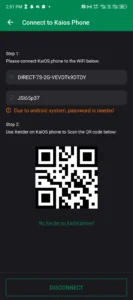
Your Android phone will now display a unique QR Code. This is the final key to locking the connection in place.
Open the Xender app on your KaiOS phone.
Choose the Scan option within the KaiOS Xender app.
Line up your KaiOS phone’s camera with the QR code displayed on your Android screen.
Success! As soon as the camera reads the code, both devices will chime and link up. You are now free to rapidly transfer photos, music, and videos back and forth between your devices with zero data fees!
Yes. This guide is specifically designed for KaiOS devices (like the JioPhone or Nokia smart-feature phones) to easily connect and share files with an Android device for free.
This is the most common issue searched by users. It usually happens for two reasons:
Android Hotspot Band: Many modern Android phones broadcast Wi-Fi at 5 GHz, but most KaiOS devices only support 2.4 GHz On your Android phone, go to Hotspot Settings and make sure the AP Band is set to 2.4 GHz.
Location Services: If GPS/Location is turned off on the Android device, the app cannot properly configure the local Wi-Fi network. Make sure Location is enabled in the Android settings.
No. You cannot install an .apk file on a KaiOS device because APKs are designed strictly for Android. For KaiOS devices (like the JioPhone), you must open the official JioStore or KaiStore, search for Xender, and install the official web-app or native version designed specifically for KaiOS.
Because smart-feature phones often have lower-resolution rear cameras without autofocus, scanning can be tricky. Try the following:
Increase the screen brightness of your Android phone to maximum.
Clean the lens of your KaiOS phone.
Hold the KaiOS phone stable about 6–8 inches away from the Android screen and let it sit for a few seconds to register.
Alternative: If it completely fails, manually look at the Wi-Fi password shown on the Android screen, type it into your KaiOS Wi-Fi settings, and access the web share portal manually.
Xender creates a strict local peer-to-peer Wi-Fi network (LAN) to transfer files directly between chips without utilizing cellular tower data. If your regular mobile hotspot is already active, Android cannot dual-broadcast the specific hidden network required to hand off files to the KaiOS client. You must disable any active personal hotspots first.
Yes, but you must check your KaiOS storage limits first. While the transfer speed is incredibly fast over Wi-Fi (requiring zero internet data), KaiOS phones usually have very limited internal storage (often 4 GB). Ensure you have a formatted microSD card inserted into your KaiOS device and set as the default storage path before transferring heavy files.
Frequent disconnections are typically caused by aggressive Android battery optimizations or KaiOS sleep timers.
On the Android device, ensure Xender is excluded from Battery Optimization / Sleep Mode.
Keep both phone screens active during the transfer. If the KaiOS phone goes into deep standby mode, it may drop the local Wi-Fi connection to save power.
Yes! If the native KaiOS app is giving you trouble, you can use the browser method. On your Android phone, choose “Connect PC/Web” in Xender. Then, open the default browser on your KaiOS phone and enter the IP address displayed on the Android screen (e.g., 192.168.43.1:1999). This loads a direct local sharing interface right inside the KaiOS web browser.