Why Xender Fails on Modern iPhones: Understanding iOS Privacy
Are you trying to transfer files from Android to iPhone using Xender and encounter Xender not connecting on iPhone error?
Normally, moving files between an iPhone and an Android device should be as simple as AirDrop, but sometimes Apple’s strict security protocols create a “privacy wall” that blocks third-party apps like Xender. If your QR scans are failing or the “searching” circle keeps spinning, you aren’t alone.
In most cases, the issue isn’t the Xender app or your hardware—it’s how iOS manages local network permissions. If these settings aren’t exactly right, Xender is effectively “blind” and cannot discover other devices.
Before diving into deep settings, let’s look at the Quick Diagnostic: Where is your transfer failing?
- Devices don’t detect each other: Usually, a Local Network or Location permission issue.
- Connection drops mid-transfer: Usually a Wi-Fi Auto-Join or Power Saving conflict.
How to solve the Xender not connecting on iPhone error?
Follow these simple steps to solve the issue of Xender failing to connect on modern iPhones.
Step 1: The “Local Network” Permission
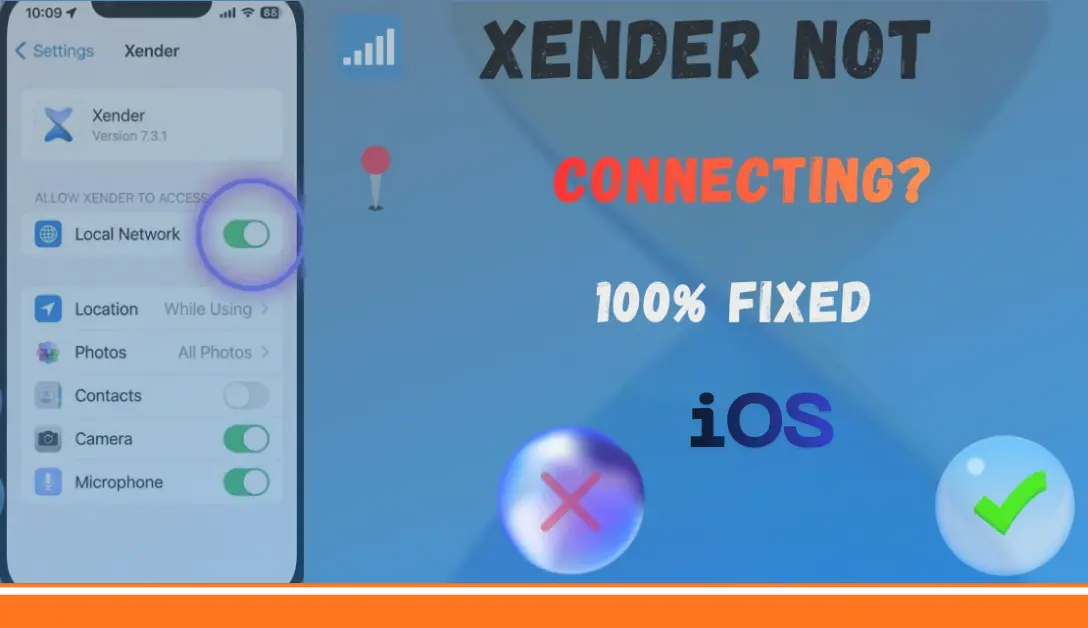
For Xender to communicate with an Android phone, iPhone, or PC, it must be allowed to discover other devices on your current Wi-Fi or hotspot environment.
- Open Settings on your iPhone.
- Scroll down to your apps list and tap Xender.
- Ensure the toggle for Local Network is ON.
Pro Tip: If “Local Network” doesn’t appear in the list, restart a transfer attempt in the Xender app to trigger the iOS permission prompt.
Step 2: Location Services & Network Scanning
Apple requires Location Services to be active for apps to perform Wi-Fi scanning. Without this, Xender cannot “see” the SSID (hotspot) created by the sender.
- Go to Settings > Xender > Location.
- Set this to While Using This App.
- Precise Location: While not always strictly required, enabling this helps improve accuracy and speed when scanning for nearby Wi-Fi networks in crowded areas.
Step 3: Handling the “No Internet” Wi-Fi Drop
iOS is programmed to prioritize Wi-Fi networks that provide a stable internet connection. Because Xender creates a local “Intranet” (a bridge with no web access), your iPhone may automatically disconnect to search for a “better” network.
- The Fix: When you connect to the network “xender_app” in your Wi-Fi settings, tap the “i” icon next to it.
- Toggle Auto-Join to OFF for your regular home or office Wi-Fi temporarily. This forces the iPhone to stay locked onto the Xender connection.
Step 4: Private Wi-Fi Address Conflicts
The Private Wi-Fi Address feature masks your MAC address for privacy. While excellent for public hotspots, it can sometimes interfere in certain peer-to-peer setups by preventing the sender device from recognizing the iPhone.
- If you face a “Handshake” error, go to Settings > Wi-Fi.
- Tap the “i” next to the Xender hotspot network and try toggling Private Wi-Fi Address to OFF.
AirDrop vs. Xender: Which Should You Use?
If you are moving files between two iPhones, AirDrop remains the standard. However, for cross-platform transfers (iOS to Android/Windows), Xender bridges the gap that Apple’s ecosystem leaves open. Unlike cloud-based alternatives, Xender doesn’t require an internet connection or a data plan, making it the practical choice for large media transfers.
Technical Limits & Stability
While Xender is a powerful tool for cross-platform sharing, it is important to manage expectations regarding file sizes. While there is no fixed software limit, practical limits exist. Large transfers (e.g., 50GB+) are susceptible to connection drops due to phone overheating or background app refresh limits on iOS. For extremely large batches, consider sending in smaller groups to ensure stability.
FAQs
Final Verdict: Why Xender is Still the Best Bridge for iOS
Navigating Apple’s “walled garden” can be a headache, but as we’ve observed, the majority of Xender connection issues on iPhone aren’t caused by app bugs—they are simply a result of iOS doing its job to protect your privacy. By taking two minutes manually adjusting your Local Network and Location settings, you can unlock a level of cross-platform freedom that AirDrop simply doesn’t offer.
From your iPhone, whether you are moving a 4K video to a Windows PC or sharing high-resolution photos with an Android friend, Xender remains the most reliable, data-free solution in 2026. Keep these troubleshooting steps bookmarked for the next time you update your iOS, and you’ll never have to worry about a spinning “searching” circle again.
Ready to start sharing? Ensure you’re running the latest version by visiting our Xender download home page.